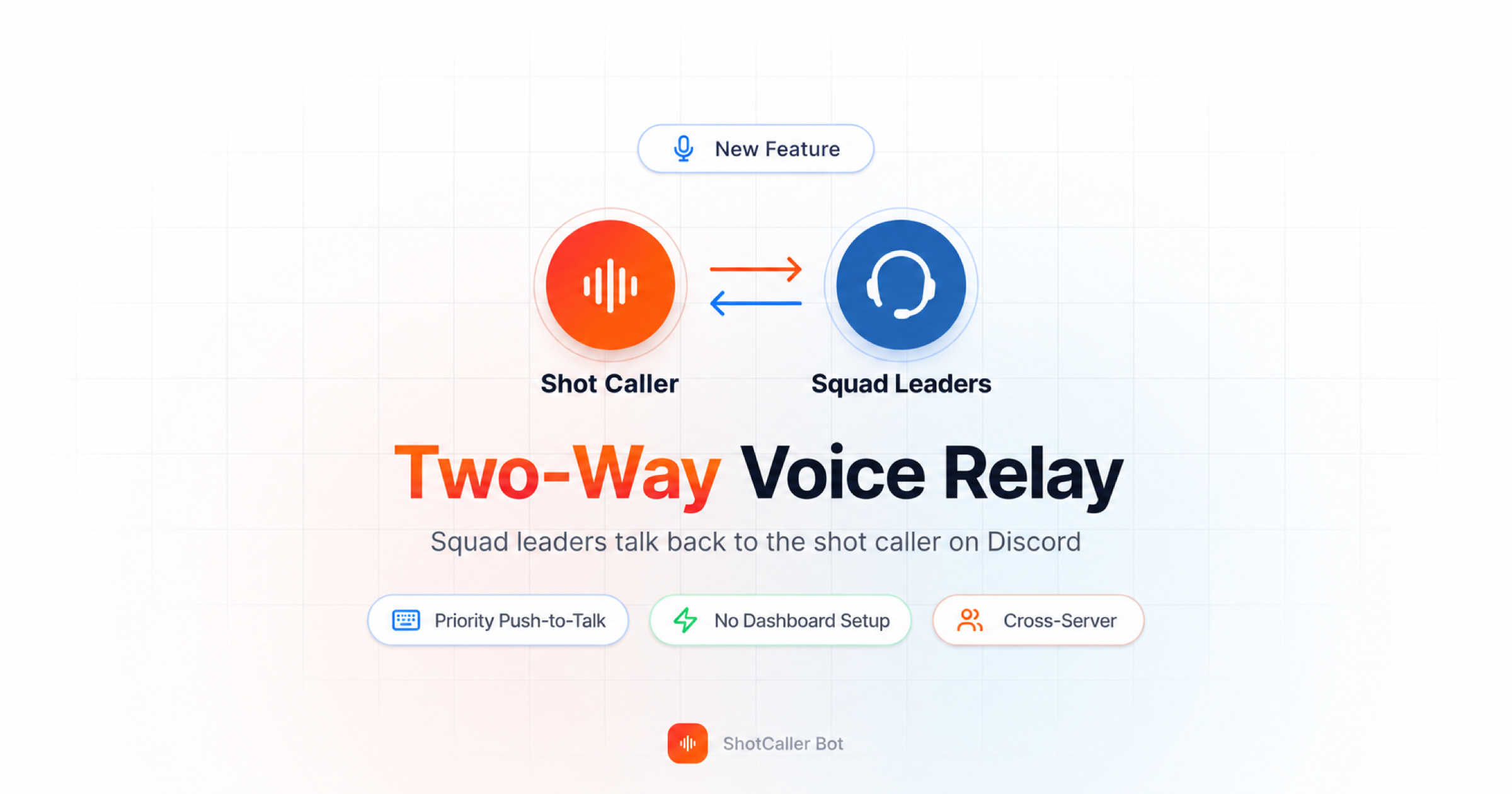
Talk-Back: Two-Way Voice Between Squad Leaders and Your Shot Caller on Discord
Your shot caller calls the push. Every squad hears it. Then Squad 3's leader spots the enemy flanking east, and nobody who matters hears it, because the relay only runs one way.
A way for squad leaders to talk back has been the most requested feature since the ShotCaller Discord bot launched. Talk-Back turns ShotCaller into a two-way Discord voice relay: squad and party leaders hold one key to talk straight to the shot caller, without leaving their own voice channel.
What Talk-Back Does
ShotCaller already puts a speaker bot in every squad channel to play the shot caller's calls. With Talk-Back, those bots also listen for one signal: Discord's Push to Talk (Priority) key.
| Leader presses | Their squad hears | Shot caller hears |
|---|---|---|
| Normal push-to-talk key | ✅ | ❌ |
| Priority push-to-talk key | ✅ | ✅ |
Squad chatter stays in the squad. Only the callouts a leader chooses to send up reach the shot caller channel. Other squads never hear talk-back, and the shot caller's broadcast to every squad works exactly as before.
How to Set Up Two-Way Voice Relay on Discord (2 Minutes)
You don't change anything in the ShotCaller dashboard. Talk-Back is on for every server, and setup is two steps in Discord.
Step 1: Give squad and party leaders Priority Speaker
Talk-Back works for anyone with Discord's Priority Speaker permission in a squad channel. A server admin does this once.
- Open Server Settings → Roles.
- Select your squad leader or party leader role, or create one (for example
Squad Leader). - Open the Permissions tab and turn on Priority Speaker.
- Click Save Changes and assign the role to your leaders.
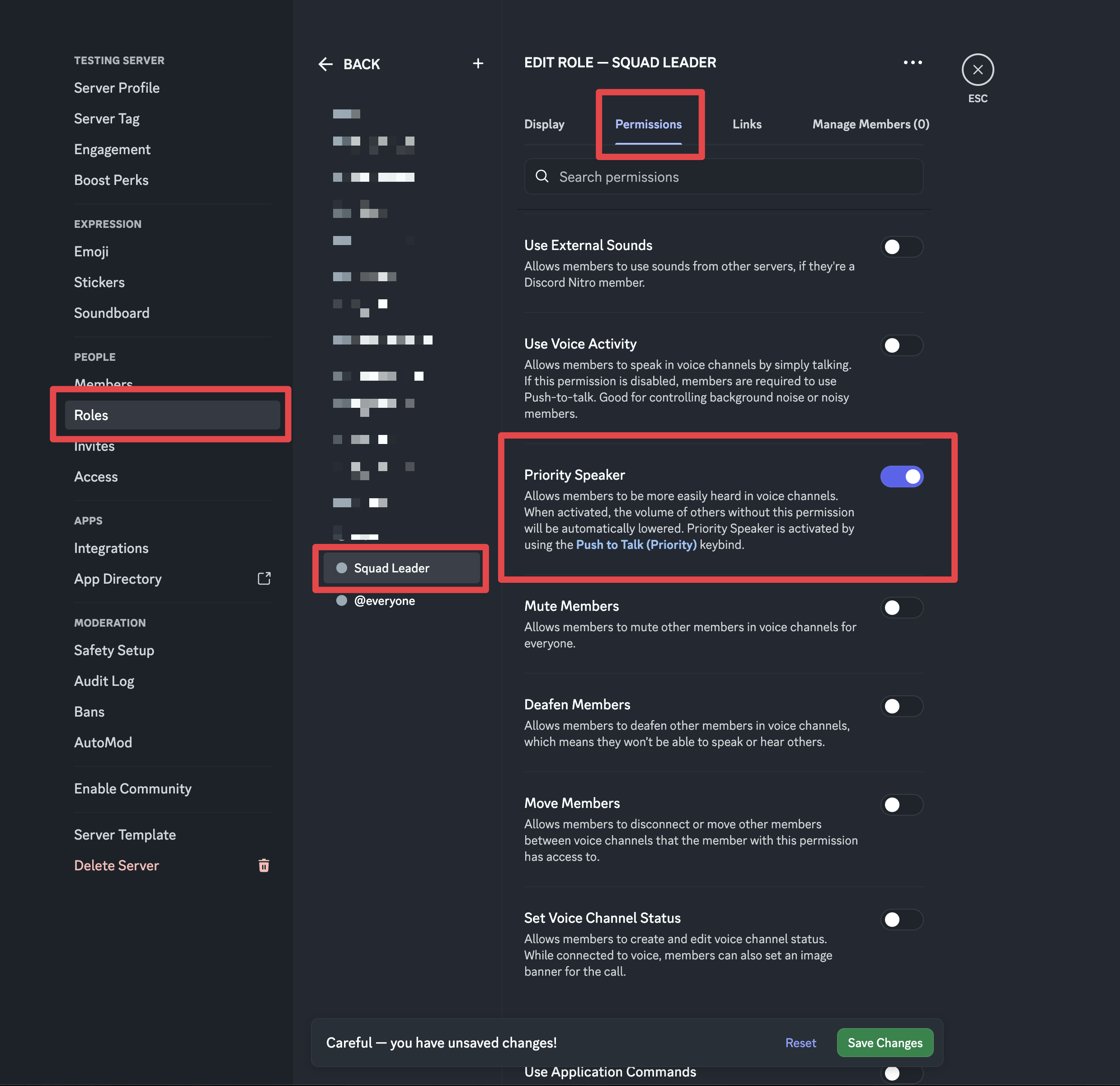
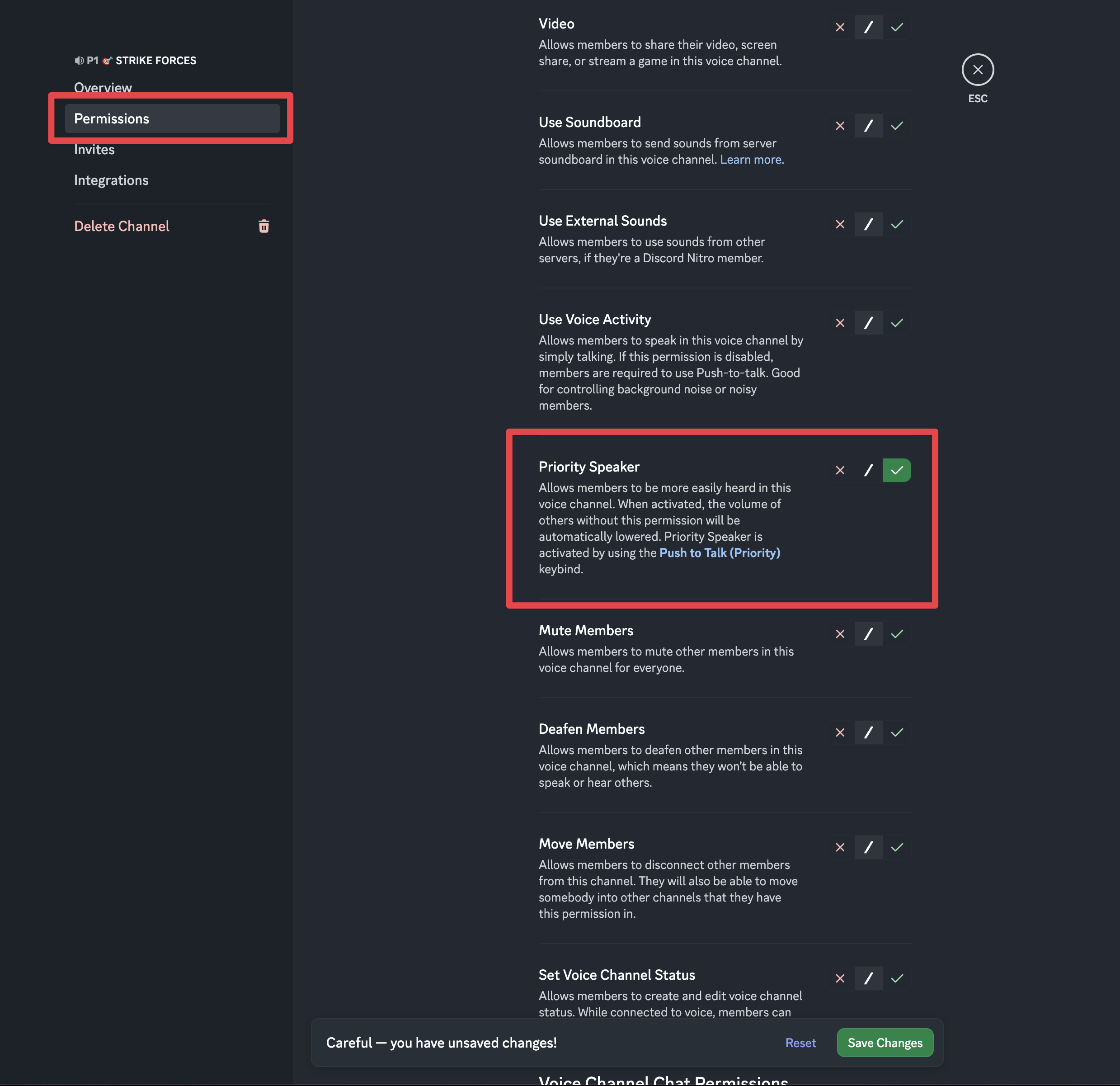
Only want Talk-Back in certain squad channels? Leave the role permission off. Instead, open each squad channel's Edit Channel → Permissions, select the leader role, and set Priority Speaker to ✓. Discord supports the permission at both the server and the channel level.
Step 2: Bind Push to Talk (Normal) and Push to Talk (Priority)
Priority Speaker only works in push-to-talk mode, so each leader needs two keybinds.
- Open User Settings → Voice & Video and turn on Push to Talk.
- Open User Settings → Keybinds (under System → Custom Keybinds) and click Add a Keybind. Set Keybind Action to Push to Talk (Normal) and bind Mouse 4.
- Click Add a Keybind again. Set Keybind Action to Push to Talk (Priority) and bind Mouse 5.
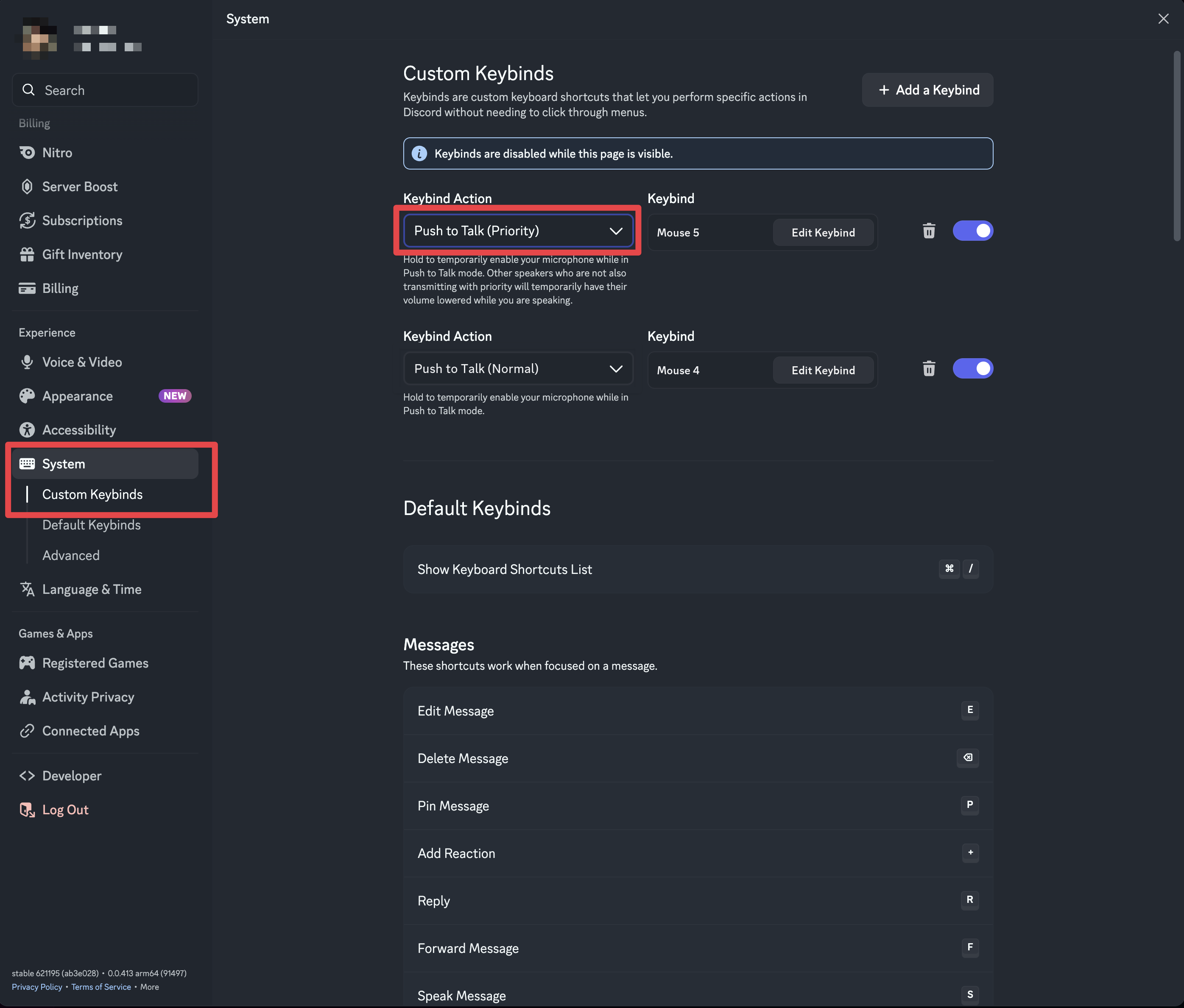
That's it. Start your relay as usual with /start, and when a leader holds their priority key, the shot caller hears them.
Recommended keybinds for squad leaders
| Key | Keybind Action | Who hears you |
|---|---|---|
| Mouse 4 (back side button) | Push to Talk (Normal) | Your squad |
| Mouse 5 (forward side button) | Push to Talk (Priority) | Your squad and the shot caller |
- Thumb-only switching. Both buttons sit under your thumb, so you can move between squad and shot caller mid-fight without leaving your movement or ability keys.
- Easiest button for the most common action. You talk to your squad far more often, so it gets the button closest to your thumb. The priority key is a deliberate reach, so squad chatter doesn't slip through to the shot caller by accident.
- Single keys, no combos. Combinations like
Shift + =are slow in a fight and clash with ability modifiers. - Same layout for every leader. When the whole guild uses "back button = squad, forward button = command," officers can teach it once and fix problems quickly.
No side buttons? Pick two neighbouring single keys your game doesn't use, like Caps Lock for squad and ` for priority. Avoid the number row, modifier keys, and anything near WASD.
While you're in Voice & Video, raise the Push to Talk Release Delay slider slightly off the minimum so the last word of each callout isn't clipped.
Requirements
- Discord desktop app. Discord only supports Priority Speaker in the desktop app, not on mobile (Discord's Priority Speaker guide).
- Push to Talk input mode. Voice Activity users need to switch (Discord's input mode guide).
- An active ShotCaller relay with the leader's squad channel connected.
Why Discord's Priority Key Beats Whisper Lists and Channel Hopping
Veterans coming from TeamSpeak remember Channel Commander. Squad leads could whisper up to command and hear command back on the same key. Discord never built it. Guilds have been asking for it in Discord's own feedback forum for years, in threads like Channel commander. If you're weighing the switch, see our TeamSpeak alternative guide.
Every workaround guilds use today breaks in the middle of a fight:
- Relaying everything a leader says buries the shot caller in noise from ten squads at once.
- Slash commands or buttons mean alt-tabbing out of the game mid-pull.
- Hopping into the command channel drops the leader from their own squad.
Discord's Priority Speaker already gives a leader a second push-to-talk key. It's built into the desktop app, gamers already know how to bind it, and Discord designed it for raids. Talk-Back uses it as the signal: priority key held means "this is for the shot caller."
What Happens When Several Leaders Talk at Once
Fights get loud. When two or three squad leaders hold their priority key at the same moment, ShotCaller mixes their voices together into the shot caller channel. Nobody gets cut off and nobody waits for a turn.
Talk-Back also runs on a completely separate audio path from the main broadcast, so a busy return channel never affects how clearly the shot caller's calls reach every squad.
Talk-Back in Cross-Server Alliance Events
Running an alliance across several Discord servers? In a cross-server event, allied squad leaders with Priority Speaker in their own server can talk back to the host shot caller the same way. Alliance leads get a direct line to the caller without anyone joining another guild's server.
Troubleshooting: Priority Key Not Reaching the Shot Caller
If a leader holds their priority key and the shot caller hears nothing, check these in order:
- Permission: the leader needs Priority Speaker in that squad channel, either from their role or a channel override. If the squad channel has an override that sets Priority Speaker to ✕ for the leader's role, it blocks the permission even when the role allows it server-wide.
- Input mode: Push to Talk must be on in Voice & Video. Priority Speaker doesn't work with Voice Activity.
- Keybind: the leader must use a Push to Talk (Priority) keybind, not a second Push to Talk (Normal) bind.
- Desktop app: priority doesn't work in the mobile app, and in a browser keybinds only fire while the Discord tab is focused.
- Relay running: the leader's squad channel must be part of an active ShotCaller relay. Run
/statusto check.
Tips for Clean Talk-Back Comms
Keep talk-back for callouts. "Flank east, 15 players," "healer down, need peel," "we're out of position." Say the short line, then go back to your squad. Talk-Back works best when leaders treat the priority key like a radio to command.
Shot callers control their own volume. Talk-back plays through the ShotCaller bot in your channel. Right-click the bot to turn it down or mute it with Discord's normal user volume slider, without affecting anyone else.
Your squad hears you too. Priority Speaker also plays your voice to your own squad, and Discord lowers everyone else's volume while you hold the key. For callouts, that's usually what you want anyway.
Game-Specific Setups
- Albion Online: party leaders in each ZvZ party channel bind priority to report enemy comp and bomb timings back to the caller.
- Throne and Liberty: party leads in siege and boonstone fights call flanks and objective status up to the commander.
- Guild Wars 2: squad commanders in WvW keep subgroup chatter local and escalate only what the tag needs to hear.
- New World: army group leads in wars report point status back to the war caller.
FAQ
How do squad leaders talk to the shot caller on Discord without leaving their channel?
Give them Discord's Priority Speaker permission and have them bind Push to Talk (Priority). With the ShotCaller Discord bot running, holding that key sends their voice to the shot caller channel as well as their own squad.
Is there a TeamSpeak whisper or Channel Commander reply for Discord?
Discord has no built-in version. ShotCaller covers both halves: the relay carries the shot caller's calls out to every squad, and Talk-Back carries squad leaders' replies back.
Why isn't my Priority Speaker key working?
Priority Speaker needs the Discord desktop app, Push to Talk input mode, a Push to Talk (Priority) keybind, and the Priority Speaker permission in that voice channel. The troubleshooting checklist above walks through each one.
Does Priority Speaker work on mobile?
No. Discord only supports Priority Speaker in the desktop app, so leaders on mobile can't talk back.
Can I use Priority Speaker with Voice Activity?
No. Discord requires Push to Talk mode for Priority Speaker.
What happens if two squad leaders talk back at the same time?
ShotCaller mixes their voices together into the shot caller channel, so neither gets cut off.
Do other squads hear talk-back?
No. Only the shot caller channel and the leader's own squad hear it.
Can regular squad members talk to the shot caller?
Only if you give them Priority Speaker. Talk-Back follows Discord's own permission, so you decide exactly who can reach your shot caller.
Does Talk-Back work across allied servers?
Yes. In cross-server events, allied squad leaders with Priority Speaker in their own server can talk back to the host shot caller.
Do I need to turn Talk-Back on in the dashboard?
No. Talk-Back is on for every server. Squad leaders can use it as soon as they have Priority Speaker and a priority keybind.
My squad leaders already use Priority Speaker. What changes?
Their priority callouts now reach the shot caller as well as their squad. To keep priority squad-only for some leaders, remove Priority Speaker from those roles or channels.
Give Your Squad Leaders a Voice
One-way comms made sense when the only goal was getting calls out. The best raids run on information flowing both ways: the shot caller sees the whole fight, squad leaders see their corner of it.
Set up the ShotCaller Discord bot, give your leaders Priority Speaker, and let the calls come back. See plans.